If you are setting up mods for Bannerlord v1.5.7 (November 2026), subscribe to them on the Steam Workshop, tick them in the Mods tab of the game’s launcher, keep Harmony, ButterLib, UIExtenderEx and Mod Configuration Menu above Native and press PLAY. Mods from Nexus go into the game’s Modules folder by hand instead, and you will have to unblock the downloaded zip in its Properties before you extract it, or Bannerlord refuses to load the mod’s DLL files.
The timing is a little bit awkward right now. As of November 16, 2026, none of the framework mods names v1.5.7 on its page yet, and you should check their Files tab or Change Notes for an update dated after November 11, 2026 before you start a long campaign.
Most launcher steps and on-screen messages below were copied out of the v1.5.7 launcher and game code with War Sails 1.3.7, and the framework versions are the newest releases of each mod as of November 16, 2026.
Before you install anything, you will need:
- The PC version on Steam, GOG or Epic (consoles have no mods, and the Game Pass PC version needs BLSE)
- Harmony for almost every mod with DLL files, plus ButterLib, UIExtenderEx and Mod Configuration Menu (MCM) for many of them
- Mods whose page names the game version you play
- For Nexus downloads, a zip that you unblock before you extract it
- A copy of Documents\Mount and Blade II Bannerlord\Game Saves before you change mods on a running campaign
Contents
- Ways to install mods
- Installing from the Steam Workshop
- Installing from Nexus by hand
- Unblocking DLL files
- Harmony and other framework mods
- Load order
- Using Vortex
- When you need BLSE
- When a mod won’t load
- Crash fixes
- Changing mods mid-campaign
- Achievements with mods
- After a game patch
- Picking mods that work
- Mods on consoles
- Conclusion
Ways to install mods
| Route | Unblocking | Good for | Watch out for |
|---|---|---|---|
| Steam Workshop | Never needed | A first modded game, all four core frameworks | Updates arrive mid-campaign, no version picker |
| Nexus by hand | Unblock the zip, then extract it | Older files for a rolled-back game, no surprise updates | Manual updates, nesting mistakes, duplicate copies |
| Vortex | If “Cannot load:” appears, unblock | Dependency sorting, profiles, collections | Skips the official launcher, Workshop list stays separate |
| BLSE launcher | No, its launchers unblock automatically | Mods that need BLSE, Game Pass PC | Own shortcut, Steam’s Play opens the official launcher |
A mod is anything that changes or adds to the game, and in Bannerlord every mod is a module. A module is a folder with a SubModule.xml file inside, and that file tells the launcher the mod’s name, its version and which other modules it needs. The game itself is built from modules as well. Native, SandBox Core, Sandbox, StoryMode, CustomBattle, Birth and Aging Options and War Sails are the official ones in the Singleplayer tab, and they sit in the same Mods list as everything you install yourself. War Sails will only appear there if you own the DLC.
You can get mods through the Steam Workshop, by hand from Nexus or with the Vortex mod manager, and you can start the game through BLSE’s launchers instead of the official one. For a first modded game I would pick the Steam Workshop. Subscribing needs no unblocking, no folders and no manual updates, and all four core frameworks are there.
Nexus by hand is the better pick when you play a rolled-back game and need an older file of a mod, when a mod is not on the Workshop at all, or when you do not want a mod to update in the middle of a campaign. You can also combine both routes, as long as you never keep the Workshop copy of a mod and a second copy of it in the Modules folder.
Whichever route you take, modding Bannerlord works the same way in the end. The mods land on your PC, you tick them in the Mods tab of the launcher and you press PLAY. Vortex is the only exception, since it keeps its own list and starts the game itself.
The launcher is the small window that opens before the game, with PLAY, CONTINUE, Singleplayer, Multiplayer, News, DLC and Mods on it. Steam’s Play button opens it, and it keeps doing that even after you install BLSE. In it, you go to Singleplayer, open Mods, tick your mods and press PLAY (or CONTINUE to load your last save).
Only the ticked mods load, in the order of the list. The launcher hands that list to the game at the moment you press PLAY, and tools such as BLSE or Vortex pass it on in the same way. That is why a modded game should always start from PLAY or from one of those tools.
Installing from the Steam Workshop
Every mod on the Workshop is a Workshop item with its own id number, and subscribing to it is all the installing you will ever do. Steam downloads the files into its own Workshop folder, and the launcher will ask Steam for them when it opens.
- Subscribe to the frameworks first: Harmony (2859188632), ButterLib (2859232415), UIExtenderEx (2859222409) and Mod Configuration Menu v5 (2859238197). Then subscribe to the mods you want.
- Let Steam finish every download.
- Start the game from Steam, and make sure Steam is running and you are logged in. If the launcher was already open, close it and open it again, because it only reads the Workshop list once when it starts.
- In the launcher, go to Singleplayer > Mods and tick your mods. Ticking a mod also ticks the mods it needs.
- Press PLAY, or CONTINUE for your last save.
- A CAUTION box will pop up. Press Confirm and the game starts.
A Workshop subscription always gives you the newest file the author has published for that item, and Steam updates it by itself. There is no version picker. Harmony and UIExtenderEx keep separate legacy items for the game versions v1.0.0 to v1.2.12 (Harmony 3613449471, UIExtenderEx 3814143094), which matters if you ever play one of those old versions.
Steam does not always deliver a framework update cleanly, though. If one of the frameworks crashes after an update, unsubscribe from it and subscribe again. When you browse for new mods, the Compatible Version tag on a Workshop item tells you which game version its author marked it for.
The CAUTION box looks a lot scarier than it is. With any mod that brings its own DLL files (compiled program code that runs inside the game), PLAY will open a box that starts with “You’re loading unverified code from: …” and lists those mods. It also adds a line for every requirement whose version differs from the one the mod asked for, and it closes with the question “Are you sure?”
All of that is a warning and nothing more, and Confirm will start the game. Version numbers never stop a mod in the launcher, with one exception: War Sails has to match the game version exactly.
Every mod with DLL files, Harmony included, also carries a red exclamation mark in the Mods list with the text “Couldn’t verify some or all of the code included in this module.” That is normal as well. It does not mean the mod is broken or blocked, and unblocking its files will not make the mark go away.
One more note on the name. If you searched for Bannerlord workshops and meant the businesses you can buy in towns, that is a different thing entirely, and my guide to the best workshops for every town is where you want to be.
Installing from Nexus by hand
On Nexus Mods, a mod comes as an archive (usually a zip) that you download and copy into the game yourself. It goes into the Modules folder of the game, which on a default Steam install is C:\Program Files (x86)\Steam\steamapps\common\Mount & Blade II Bannerlord\Modules.
- On the mod’s page, open the Files tab, pick the file for your game version and click Manual download.
- Right-click the downloaded zip, choose Properties, tick Unblock and click OK.
- Extract the zip into the Modules folder so that the mod’s file sits at Modules\ModFolder\SubModule.xml, one folder level deep.
- Install every requirement listed on the mod’s page the same way, or subscribe to it on the Workshop instead, but never both.
- Open the launcher, go to Singleplayer > Mods, tick the mod and press PLAY. Then press Confirm in the CAUTION box.
The folder depth is easy to get wrong. The launcher only looks at the folders directly inside Modules, and a zip that unpacks as Modules\ModFolder\ModFolder\SubModule.xml will be skipped without any message. The mod will simply never appear in the list.
Additionally, the mod’s DLL files have to sit in its own bin\Win64_Shipping_Client folder. If they are not there, you will get an error box with “Cannot find:” and the path to the missing file.
The manual route takes a few more clicks, but it has two real advantages. You can pick an older file for a rolled-back game, and nothing updates behind your back in the middle of a campaign. In return, you will have to update every mod yourself.
Unblocking DLL files
Windows tags files that you download with a browser as coming from the internet, and Bannerlord refuses to load a mod DLL that carries this tag. When that happens, you will see an error box that starts with “Cannot load:” followed by the path to the .dll file. Unblocking simply means removing that tag again.
For a mod you installed by hand, the fix is simple. Right-click the downloaded zip, choose Properties, tick Unblock, click OK, and only then extract it. If you have already extracted the mod, you can unblock the .dll files in its bin\Win64_Shipping_Client folder the same way.
Steam Workshop downloads do not carry this tag, which means Workshop mods do not need this step at all. The game and the official launcher never unblock anything for you, while BLSE’s two launchers do it automatically.
Vortex is a grey area. For mods installed through it, nothing settles the question either way, and if the error shows up with a Vortex install, unblock the files the same way or start the game through BLSE. One-click unblock tools exist on Nexus too, but the manual way takes a minute and runs no script.
Harmony and other framework mods
A framework mod is a mod that does nothing by itself and exists so that other mods can build on it. Bannerlord has four core ones: Harmony, ButterLib, UIExtenderEx and Mod Configuration Menu.
Harmony is a shared patching library. It lets mods change the game’s code while it runs, and it makes every mod in your list use the same, newest copy of it. Almost every DLL mod needs it, and 1,822 mods on Nexus list it as a requirement.
Use the BUTR version: Workshop item 2859188632 (for v1.3.4 and later, with 3613449471 for v1.0.0 to v1.2.12) or Nexus mod 2006. Keep exactly one copy of it, at the very top of the list, where the launcher will put it by itself.
ButterLib is a common library for mod authors, and together with BLSE it also brings its own crash report window. UIExtenderEx lets several mods change the same game screen, and MCM adds the Mod Options screen where other mods keep their settings. MCM in turn needs Harmony, ButterLib and UIExtenderEx.
Mind that there is a second Harmony around. Harmony Updated (Nexus 11597, Workshop 3740878109) is an unofficial rebuild with the same module id as the original. Both share that id, which is why you should run either Harmony Updated or the BUTR Harmony and never the two together.
| Mod | What it does | Load position | Version and declared support | Workshop / Nexus id |
|---|---|---|---|---|
| Harmony | Shared patching library, one copy for every mod | First, above Native | v2.4.2.248, every version past v1.0.0 | 2859188632 / 2006 |
| ButterLib | Common library for mod authors | After Harmony, above Native | v2.12.0, v1.0.x to v1.5.x | 2859232415 / 2018 |
| UIExtenderEx | Lets several mods change the same screen | After Harmony, above Native | v3.0.3, v1.3.x to v1.5.x | 2859222409 / 2102 |
| Mod Configuration Menu v5 | The in-game Mod Options screen | After Harmony, ButterLib, UIExtenderEx, above Native | v5.13.1, v1.0.x to v1.5.x | 2859238197 / 612 |
| BLSE | Launcher extender: auto-unblock, sorting, Game Pass | Not in the mod list, start via its exe | v1.7.5, v1.0.x to v1.5.x | none / 1 |
| Harmony Updated | Unofficial Harmony rebuild, same module id | Never together with Harmony | v2.4.3.249, compiled against the v1.5.6 beta | 3740878109 / 11597 |
As of November 16, 2026, none of the core framework mods (Harmony, ButterLib, UIExtenderEx, Mod Configuration Menu, BLSE) names v1.5.7 on its page. They declare support for v1.5.x, their newest releases all came out before the November 11 patch, and since that patch the ButterLib and MCM Workshop comment sections hold both crash reports and works-fine reports.
ButterLib and MCM carry one build per game version and fall back to their newest one when yours is missing. On v1.5.7, that means ButterLib’s 1.5.1 build and MCM’s 1.5.5 build (checked November 16, 2026).
To check a mod yourself, open the Files tab and the changelog on Nexus, because the version box at the top of a Nexus page can lag behind the real file. On the Workshop, open the Change Notes tab and look at the Compatible Version tag. In both cases you are looking for an update dated after November 11, 2026.
These four are the only must-have tier in Bannerlord modding. Almost every DLL mod needs Harmony, and mods that put their settings into the Mod Options screen need MCM, which pulls in the other three. BLSE is a different kind of tool and gets its own section further down.
How to install Harmony
Subscribe to Workshop item 2859188632, or download Nexus mod 2006 and install it by hand like any other Nexus mod (unblock the zip first). You do not need to drag it anywhere. Its own SubModule.xml tells the launcher to load it before the official modules, which puts it at the very top of the list. Install only one of the two copies.
Why Harmony is not working
When Harmony seems broken, it is usually one of these five things:
- Two copies of it, for example the Workshop item plus a Bannerlord.Harmony folder in Modules, or Harmony plus Harmony Updated
- A stray 0Harmony.dll in the game’s own bin\Win64_Shipping_Client folder, left there by old launcher replacements
- A stale Workshop download that a fresh subscription will replace
- A blocked DLL on a manual install, which gives you “Cannot load:” after PLAY
- A mod in your list that was built for another game version
Load order
Load order is the order in which the game loads your mods, from the top of the Mods list to the bottom. It sounds more complicated than it is, because the launcher is going to handle a good part of it without your help.
Does load order matter?
It matters, but only between mods that do not declare each other. Everything a mod declares in its SubModule.xml, the launcher enforces by itself, apart from the extra load-order data for BUTR’s tools (more on that below). For two mods that change the same thing without knowing about each other, load order decides whose change wins, and since v1.4.5 even the UI brush overrides (interface styles) of several mods stack in load order.
| # | Module | Why it sits there |
|---|---|---|
| 1 | Harmony | No dependencies, the launcher puts it above Native |
| 2 | ButterLib | Depends on Harmony, above Native |
| 3 | UIExtenderEx | Depends on Harmony, either way round with ButterLib |
| 4 | Mod Configuration Menu | Depends on Harmony, ButterLib and UIExtenderEx |
| 5 | Native | Official, always on |
| 6 | SandBox Core | Needs Native |
| 7 | CustomBattle and Birth and Aging Options | Need Native and SandBox Core |
| 8 | Sandbox | Needs Native and SandBox Core |
| 9 | StoryMode | Needs Native, SandBox Core and Sandbox |
| 10 | War Sails | Needs Native, SandBox Core, Sandbox, StoryMode, game v1.5.7 |
| 11 | Content mods | Below the official modules, you set the order by hand |
| 12 | Overhauls | Last among content, per their own pages |
| 13 | Compatibility patches | After both mods they patch |
A mod’s requirements will always load above it. The launcher re-sorts the whole list after every drag, which means you cannot drag a mod above its own requirement. Ticking a mod will tick its requirements, and unticking a framework will untick every mod that needs it. It also moves Harmony, ButterLib, UIExtenderEx and MCM above Native, because their own files ask for that.
From top to bottom, you will get Harmony, then ButterLib and UIExtenderEx (either way round), then Mod Configuration Menu, then the official modules (Native and SandBox Core first, then Sandbox, StoryMode and War Sails in that order, with CustomBattle and Birth and Aging Options anywhere below SandBox Core) and then your content mods. Among those, overhauls go below the others as their page says, and compatibility patches go below both mods they patch.
War Sails needs no dragging. The launcher will keep it below StoryMode and sort any mod that declares War Sails as a requirement below it. If a mod’s page asks for a spot relative to War Sails, simply follow the page.
Mods that the launcher has not seen before will be added at the bottom of the list. For two mods that change the same thing without declaring each other, you set the order by hand, by dragging one above the other.
The list and its order are saved in Documents\Mount and Blade II Bannerlord\Configs\LauncherData.xml whenever you press PLAY, switch tabs or close the launcher. Many mods also ship extra load-order data meant for BUTR’s tools. The official launcher ignores it, while BLSE’s LauncherEx reads it.
Using Vortex
Vortex is the mod manager of Nexus Mods. To use it with Bannerlord, add the game on Vortex’s game page, which downloads the Bannerlord extension made by the BUTR team. After that, you install mods with the mod-manager download button on Nexus, set the order in Vortex’s Load Order tab (Auto Sort sorts by declared requirements) and start the game with Vortex’s Play button.
That Play button will go through BLSE when BLSE is enabled in your Vortex profile. Otherwise it starts the game directly and skips the official launcher, and the game then uses the order you set in Vortex. Your Workshop subscriptions stay a separate list.
The newer Nexus Mods app lists Bannerlord support as still in development (checked November 16, 2026).
When you need BLSE
BLSE (Bannerlord Software Extender) is a launcher and loader extender from the BUTR team. It is optional for most mods. You only need it when a mod lists it as a requirement, because the official launcher will keep such a mod greyed out, or when you play the Game Pass PC version.
BLSE is not a module in the Mods list. You download it from Nexus (mod 1), its files go into the game’s bin\Win64_Shipping_Client folder, and Harmony has to be installed. Then you start the game with Bannerlord.BLSE.Launcher.exe, which looks like the normal launcher, or with Bannerlord.BLSE.LauncherEx.exe, the extended launcher.
You are going to need a shortcut to one of them, since Steam’s Play button still opens the official launcher. On Epic, the exe has to be renamed. To see whether BLSE is running, press ALT and the tilde key in the game to open the console and type blse.version.
In return, you get automatic unblocking, extended sorting that reads the extra load-order data many mods ship, and an exception catcher. Like the other frameworks, BLSE declares support for v1.5.x (see the framework status above). It can also switch off the game’s crash reporter, but that alone is no reason to install it.
For the Game Pass PC version, have a look at the section on consoles below.
When a mod won’t load
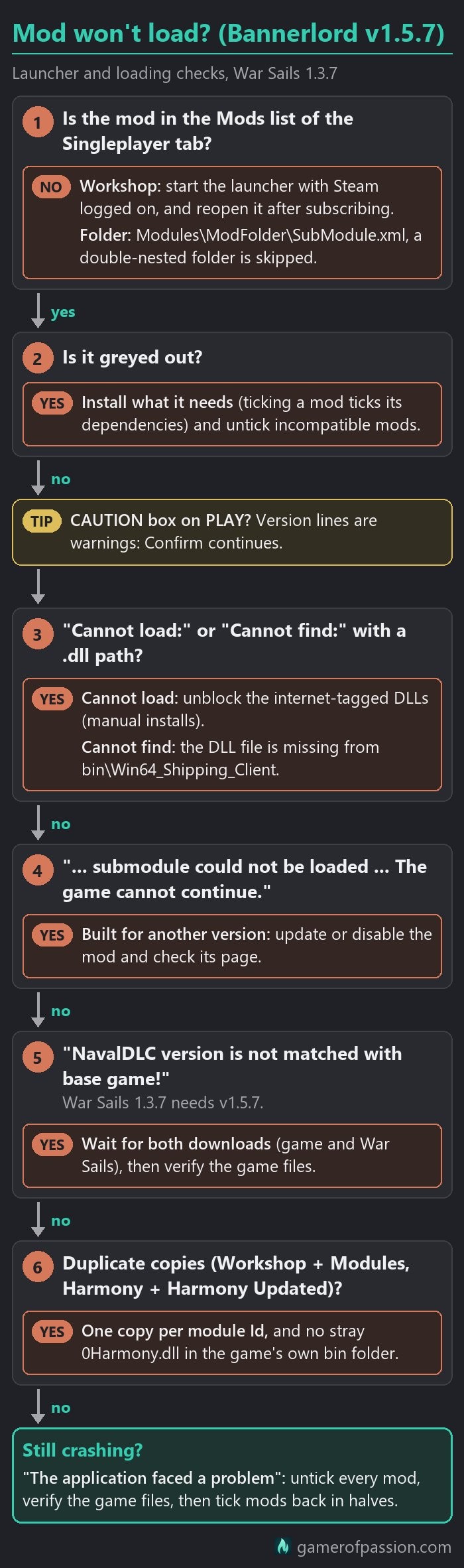
A few more things can keep a mod out of your game. Mods for multiplayer sit in the Multiplayer tab of the launcher, so a mod you cannot find under Singleplayer may simply be a multiplayer mod. Workshop mods are only listed while Steam is running and you are logged in.
If the launcher shows “Module … can’t be loaded, there are some errors.”, the mod’s SubModule.xml is broken or incomplete. Download it and install it again. A mod also cannot be ticked while a mod it is incompatible with is ticked, which you fix by unticking the other one.
Crash fixes
| What you see | Likely cause | Fix |
|---|---|---|
| “The application faced a problem” | Any crash, mod or vanilla | Untick every mod, verify files, tick mods back in halves |
| “Game shut down unexpectedly on previous session” | The last session ended uncleanly | Either answer is fine, no fix for mod crashes |
| “… submodule could not be loaded …” | A mod built for another game version or an old framework | Update or disable that mod, check its page |
| “XML Error in module” | An XML mod not updated for 1.5.x | Update or untick that mod |
| “NavalDLC version is not matched with base game!” | Game and War Sails out of step | Wait for both downloads, then verify files |
| “Module … can’t be loaded, there are some errors.” | A broken or wrongly unpacked SubModule.xml | Re-download or reinstall that mod |
| “Cannot load:” and a .dll path | A DLL tagged as from the internet, manual installs | Unblock the zip or the .dll files |
| “Cannot find:” and a .dll path | The DLL is not in bin\Win64_Shipping_Client | Re-download or reinstall that mod |
| Red mark, “Couldn’t verify …” | Normal for every mod with its own DLLs | It is not broken, unblocking does not remove it |
| Launcher does not open | Outdated GPU driver, OneDrive, security software | Update GPU drivers, allow the game folder |
Many crashes have nothing to do with mods. The 1.5 update alone fixed dozens of crashes that happened in a game without any mods, and it is worth ruling out the game itself before you blame a mod.
The application faced a problem
After a crash, Bannerlord’s crash reporter asks “The application faced a problem. We need to collect necessary files to fix this problem…” Yes will send a crash report to TaleWorlds and No will skip it. Neither answer fixes the crash. If you press Yes and want to post about the crash later, note the Crash Identifier.
The reporter is called Watchdog, and it works in the hidden folder C:\ProgramData\Mount and Blade II Bannerlord. Do not delete the Watchdog folder, because a Steam file check will put it back anyway.
If you want the reporter off, type /no_watchdog into the Launch Options (Steam Library, right-click Mount & Blade II: Bannerlord > Properties > General). That turns the reporter off and fixes nothing. The flag works with both the launcher and Steam since v1.4.5.
When a mod fails to load, you will not see this prompt at all. The game shows its own error box that names the mod instead.
For crashes with “The application faced a problem”, go through these steps in order:
- Start the game once with every non-official mod unticked. If it still crashes, mods are not the cause.
- Verify the game files: Steam Library, right-click the game > Properties > Installed Files > Verify integrity of game files.
- Tick your mods back in halves or a few at a time, and test each step on a new sandbox campaign.
- On the culprit’s page, check the game version it names. Update or resubscribe Harmony, ButterLib, UIExtenderEx and MCM, and keep one copy of each.
- Update Windows and your GPU driver, and reinstall the Visual C++ redistributables if a DLL is reported missing.
- Last resort: copy Documents\Mount and Blade II Bannerlord\Game Saves somewhere safe, then back up and delete Documents\Mount and Blade II Bannerlord and C:\ProgramData\Mount and Blade II Bannerlord. The game creates both again, but keep in mind the Documents folder also holds your saves and, in Configs, your mod list and load order.
- Reinstall the game cleanly, because some mods change files inside the official module folders.
Safe mode
If Bannerlord closed badly the last time (a crash, a killed process, or closing it during a long first load), the next start asks “Game shut down unexpectedly on previous session. Would you like to enable safe mode?”
TaleWorlds has never explained what safe mode changes. Either answer is fine. Safe mode is no fix for mod crashes either, and if the crash comes back, go through the steps above.
Launcher not opening
If the game or its crash reporter will not start, check whether your antivirus is blocking them and allow the game folder instead of switching your protection off. A Documents folder that is kept in OneDrive can also stop the game from starting.
If the launcher does not open at all, update your GPU driver. With the 1.5 update, the launcher switched from OpenGL to DirectX 11, a change made for launchers that failed to open on outdated or Intel drivers.
Changing mods mid-campaign
| What you do | What the game does | Risk |
|---|---|---|
| Add a mod to an existing campaign | “Module Mismatch” box, Yes loads the save | A Story Mode save loses achievements for good |
| Remove a mod from a campaign | “Module Mismatch” box, Yes loads the save | Content mods can break the save, back up first |
| Update a mod | “Module Mismatch” box, Yes loads the save | Depends on the mod, read its changelog |
| Untick War Sails on a War Sails campaign | Save is greyed: activate War Sails to load it | Hard block, no way around it |
| Tick War Sails on a campaign started without it | Save is greyed: deactivate War Sails to load it | Hard block, decide before you start the campaign |
| Roll the game back | Newer saves greyed, older saves load | Keep the rolled-back game on its own campaign |
| Update the game with mods on | Some mods keep working and others crash | Copy Game Saves first, test on a new sandbox |
| Turn on cheats or Advanced Start Options other than the seed | Achievements switched off for that save | That save stays without achievements |
Bannerlord lets you add or remove mods on a running campaign. When you load the save, a “Module Mismatch” box will list what changed and ask “Do you want to load the saved game with different modules?”, and Yes loads it.
That does not make it safe. Mods that add items, troops, characters or map content can still break a save they are removed from, and that is why you should back up the save before you change anything.
Personally, I would only add small interface and quality-of-life mods to a running campaign (with a backup) and keep content mods and overhauls for the start of a new campaign.
Two fixes help here. The 1.5 update fixed a crash after removing mods, and v1.5.7 itself fixed the bug where the box popped up again and again on Continue.
War Sails locks a save both ways. A save started with War Sails will not load without it (“This save file was created with the War Sails module, which has been removed from the game. You need to activate the module to load this save.”), and one started without War Sails will not load with it switched on.
Your saves live in Documents\Mount and Blade II Bannerlord\Game Saves, which is the folder to copy before any change.
Achievements with mods
Achievements only count in a Story Mode campaign, the one with the main quest. Sandbox campaigns do not track them at all, as my comparison of Story Mode and Sandbox explains.
As soon as you start or load that campaign with any non-official mod, Harmony included, v1.5.7 will show “Achievements are disabled due to unofficial modules.” That save then stays without achievements even after you remove the mod, because the save remembers every mod set it was played with.
Cheats and Advanced Start Options other than the seed switch achievements off the same way. That includes console commands such as the one that gives you every figurehead, which needs cheat mode.
War Sails and Birth and Aging Options are official and do not count. If achievements matter to you, keep a separate unmodded Story Mode campaign for them.
After a game patch
Mods break for a while after every big patch, and the frameworks are the first ones that have to catch up. After War Sails came out in November 2025, the frameworks followed within one or two days, while after v1.4.5 (May 2026) it took up to about eight weeks.
v1.5.7 replaced v1.4.8 on the public branch on November 11, 2026, after the 1.5 beta builds (1.5.0 to 1.5.6) on the beta branch. A patch like that changes a lot of rules at once, and the 1.5 changes to loyalty are one example of what a single patch can change.
Steam has no setting that stops updates for good. Properties > Updates > “Only update this game when I launch it” only delays them. When a patch lands, work through this list:
- Copy your Documents\Mount and Blade II Bannerlord\Game Saves folder before the first start after the patch.
- Update or resubscribe the frameworks first (Harmony, then ButterLib, UIExtenderEx and MCM), then your content mods. On Nexus, look at the Files tab rather than the version box at the top of the page, and on the Workshop at the Change Notes.
- Test on a new sandbox campaign before you load your main save. Some mods built for the previous version will keep working, and others will stop the game with “Please update or disable this mod and its dependencies, then restart the game.”
- Give the first start time. Since v1.4.8, the game deletes its locally built shader cache whenever the mod list changes, and the first start after a patch or a mod change can take longer. Let the loading screen finish, because a forced close counts as a crash and brings up the safe mode question.
- If a mod you cannot play without names an older version, roll back as shown below.
- Do not run mods on a TaleWorlds beta branch.
Rolling back to an older version
To play an older version, right-click Mount & Blade II: Bannerlord in your Steam Library, open Properties > Game Versions & Betas and pick the version your mods name. As of November 16, 2026, the list runs back from v1.4.8 through v1.4.7, v1.4.6, v1.4.5, v1.3.15 and older. There is no frozen v1.5.7 entry, which means you cannot pin the current version.
Saves made on v1.5.7 will not open on an older version. The game greys them out with “Save version (…) is newer than the current version (…)”, and you will have to start a separate campaign on the rolled-back game.
War Sails has to match the base version and only exists from v1.3.4 on. If the launcher says “NavalDLC version is not matched with base game! Please verify game files if the problem persists.” after a switch, let both downloads finish and verify the game files. To come back to v1.5.7, pick the default (public) entry again.
I would only roll back if a mod you cannot play without names an older version. Otherwise, stay on v1.5.7 and wait for the updates.
Picking mods that work
The best version of Bannerlord for mods is the one your key mods name on their page. There is no single answer beyond that, since mods are built for different game versions and their authors update them at a different pace.
Before you install a mod, check four things: the game version on its page or Files tab, the date of its last update, its requirements, and the newest posts and bug reports on its page. Mods are programs that run on your PC, which is exactly what the CAUTION box warns about. Stick to authors and mods with many users, and be careful with brand-new mods from authors nobody knows yet.
Add mods a few at a time and test them on a new sandbox. Before you install a mod for something small, check whether the game can already do it. You can reset perks without a mod, for example.
Overhauls (also called total conversions) are big mods that replace large parts of the game. There is no general War Sails rule for them, so do what the overhaul’s own download page says. Realm of Thrones 8.x (August 2026, built for v1.4.8) requires War Sails, for example, while 7.1, its newest version without War Sails, is for v1.3.15.
Decide before you start the campaign, because of the War Sails save lock described above. Overhauls go last among your content mods. Combat overhauls also change armour and damage, and the numbers in my guides (my stealth kill guide, for example) will not match a game that runs one.
TaleWorlds released the War Sails Modding Kit on August 10, 2026 and runs a modding competition until November 22, 2026.
Mods on consoles
There are no mods on PlayStation or Xbox consoles, and nothing up to v1.5.7 has changed that. This goes for the PS4, the PS5 and the Xbox consoles alike.
The PC Game Pass (Xbox app) version is a different case, because it is a PC version. Mods run there only through BLSE, with the files copied into the Gaming.Desktop.x64_Shipping_Client folders, and BLSE swaps your Xbox cloud saves for local saves. That is a community method from before v1.5.7, and Steam, GOG and Epic are the simpler platforms for mods.
Conclusion
Modding Bannerlord is not hard once you know what the launcher sorts for you and what it leaves to you. If you just want a handful of mods for your next campaign, the Workshop route with the four frameworks is probably the easiest one, and the launcher is going to sort most of the list for you. Until the framework pages name v1.5.7, keep a copy of your Game Saves folder and try every new mod on a test sandbox first.