Almost every mod for Divinity: Original Sin 2 is a single .pak file, and the Definitive Edition expects those files in one Mods folder inside your Documents. A mod is any fan-made change to the game, the .pak file is the packed archive that holds it, and the game calls the mods you tick add-ons.
On Steam, the simplest way is to subscribe to a mod on the Steam Workshop, start the game, open Mods > Manage Mods, tick the mod under Add-Ons and press Confirm. A mod from Nexus Mods takes one extra step, because you will have to extract the download and put only the .pak file into Documents\Larian Studios\Divinity Original Sin 2 Definitive Edition\Mods yourself, then tick it in the same menu.
Most menu names, folder paths and messages below are the ones the Definitive Edition uses on Steam today. That is version 3.6.117.3735 from the cross-save update of September 2021, and no patch since August 2020 has changed how mods work. Below, I will also go through the load order, Norbyte’s Script Extender, achievements and the usual reasons a mod does not show up.
Steam Workshop mods
The Steam Workshop is Steam’s own mod hub for the game. You will find every Workshop mod for Divinity: Original Sin 2 on one page, and Steam is going to handle both the download and the updates for you.
- Open the mod’s page on the Divinity: Original Sin 2 Workshop and click Subscribe. Only Definitive Edition items will work.
- Start the game. Steam will open the Larian launcher, where you pick the Definitive Edition and start it from there. The Steam Deck skips the launcher.
- In the main menu, open Mods > Manage Mods. You will find add-ons on the Add-Ons tab and story campaigns on Adventures.
- Tick the mod (Toggle Add-on on a controller), move it to its spot with Set Load Order and press Confirm.
- When the game warns “Achievements will be disabled when playing with add-ons. Do you want to continue?”, accept it.
The launcher is where you choose between the game’s two editions. Classic is the original 2017 release, and every mod in this guide is for the Definitive Edition. Workshop items built for Classic will be refused, as the Definitive Edition only accepts its own add-ons.
A Workshop subscription will update by itself, and a Workshop collection is the easiest way to share one mod list with friends.
When you subscribe, Steam downloads the mod as a single .pak into steamapps\workshop\content\435150\<item id>, and the game should then copy that .pak into your Mods folder the next time it starts. That copy often fails, and the mod simply never appears in the Mods menu. In that case, copy the .pak from the Workshop folder into Documents\Larian Studios\Divinity Original Sin 2 Definitive Edition\Mods yourself, or let Divinity Mod Manager do it for you.
Beware that a .pak you copied by hand stays on its old version. The Workshop download itself updates on its own, but your copy doesn’t, and you will have to copy it again after every update of the mod.
The order of the steps matters a little bit. Subscribe or copy first and only then start the game, which lets it see the new paks. Tick the add-ons and press Confirm before you start or load a game. If a mod you ticked still has no effect, quit and restart the game once.
Nexus downloads
Nexus Mods is the other big source of mods for the game, and on GOG it is the main one. A Nexus install is done by hand, but for most mods you are only going to move one file.
- Download the mod from the Definitive Edition game page on Nexus.
- Extract the archive and take out only the .pak file.
- Put the .pak directly into the Mods folder, with no subfolder around it. If the Mods folder is missing (on GOG, or before your first Workshop subscription), create it yourself in the Definitive Edition folder.
- Install the mods the page lists as requirements, plus the Script Extender if the page says so.
- Start the game, tick the mod under Mods > Manage Mods > Add-Ons and press Confirm.
Nexus mods will not update by themselves. Check the page now and then, and replace the .pak when a new version is out.
The full path of that folder is C:\Users\<your user>\Documents\Larian Studios\Divinity Original Sin 2 Definitive Edition\Mods. If OneDrive backs up your Documents folder, the same path sits under OneDrive\Documents instead.
| What | Where |
|---|---|
| Mod paks (.pak files) | DE folder\Mods |
| Ticks and load order | DE folder\PlayerProfiles\<profile>\modsettings.lsx |
| Workshop downloads | steamapps\workshop\content\435150\<item id> |
| Script Extender (Steam) | …\Divinity Original Sin 2\DefEd\bin\DXGI.dll |
| Script Extender (GOG) | GOG Galaxy\Games\Divinity – Original Sin 2\DefEd\bin |
| Loose-file mods | …\DefEd\Data, only when the mod’s instructions ask |
| Classic only (ignored by the DE) | Documents\Larian Studios\Divinity Original Sin 2 |
| Steam Deck Mods | the DE folder inside compatdata/435150/pfx |
In the table, only the Script Extender and loose-file mods point into the game install itself. Everything else lives in Documents or in Steam’s own Workshop folder.
Classic uses its own folder (…\Larian Studios\Divinity Original Sin 2\), and a .pak placed there will never be listed in the Definitive Edition. Mods built for the 2017 Classic edition do not work in the Definitive Edition either, and the game will refuse them with “Incompatible mod! A mod published using the Classic Edition is not compatible with the Definitive Edition of the game.” The only solution is to look for the Definitive Edition version of the mod. The Larian launcher also remembers which edition you started last, so check that it starts the Definitive Edition.
A few mods (texture packs, intro skips, ReShade-style presets) come as loose files or a Data folder instead of a .pak. Only those go into the install folder, usually …\Divinity Original Sin 2\DefEd\Data, and only when the mod’s own instructions say so.
Inside Mods you may also see an Inbox and an Outbox folder. Leave both of them alone, because the game uses them for Workshop updates and uploads. Your .pak files go straight into Mods.
The Mods menu
Whichever route you take, every mod ends up in the same menu, Mods > Manage Mods, and the screen shows two notes: “Note: Only Divinity Original Sin 2 Definitive Edition add-ons are supported.” and “By enabling an add-on you are no longer able to unlock achievements.”
Ticking an add-on and pressing Confirm switches it on for the game you start or load next. Under Set Load Order you move add-ons up and down with the arrows, and since there is no drag and drop, that gets a little bit tedious once your list grows past a handful of mods.
Load order
The load order is the order in which the game reads your add-ons. It loads the list from top to bottom, and if two mods change the same thing, the one lower in the list will usually win. In general, you will be fine with these rules:
- Libraries such as LeaderLib and OdinCore go at the very top, with LeaderLib first and OdinCore right after it.
- A big overhaul such as Divinity Unleashed stays near the top.
- Mods that change the content of that overhaul go below it.
- When a mod page gives its own order, follow that one instead.
The game only checks that a mod’s required mods are installed and ticked. If one is missing, it will stop with “Can’t load ‘[1]’. Missing dependencies: [2].” It does not sort your list, though, and moving the libraries to the top is up to you.
With many class or skill mods, some skill and inventory icons can turn invisible. Every mod that adds icons brings its own icon sheet, and the interface only handles so many of them. Some mods combine their icons into one sheet (OdinCore does this for Odinblade’s mods), so check the mod pages before you blame a broken install.
The modsettings.lsx file
Your ticked add-ons and their order are saved in modsettings.lsx, in Documents\Larian Studios\Divinity Original Sin 2 Definitive Edition\PlayerProfiles\<profile>. Do not change that file by hand. Change the order in the game’s Mods menu, or with Divinity Mod Manager’s Export to Game followed by a restart of the game.
If the Mods menu looks wrong or stale, close the game and delete modsettings.lsx. The game is going to build a fresh one on the next start, with every add-on unticked and the list back in alphabetical order. Write your load order down before you delete the file, because you will have to tick and order every mod again afterwards.
Norbyte’s Script Extender
The Script Extender is a free tool by Norbyte that extends what mods are able to do in the Definitive Edition. Not every mod needs it, but some, such as Divinity Unleashed, will not run without it, and the mod page will tell you. It also makes a modded game load a lot faster, which is why I would install it even with a short mod list.
- Open the Releases page of Norbyte/ositools on GitHub and download ScriptExtender-Updater-v5.zip. Skip the source code files. As of November 2026, the latest release is dated September 19, 2022.
- Open the zip and take the one file inside, DXGI.dll.
- Put DXGI.dll into …\Divinity Original Sin 2\DefEd\bin, the folder that holds EoCApp.exe.
- Start the game as usual.
Mind that the exact folder matters. The bin folder right next to DefEd belongs to the Larian launcher, and the Classic folder belongs to the old edition. The extender does nothing in either of them.
DXGI.dll is only an updater, which means that every time you start the game, it is going to check for the current extender and download it when needed, so you never have to update it by hand, although that download can fail if the game itself is not up to date.
To check that it works, watch the loading screen before the main menu, where the extender’s text will appear. Once a mod that needs it is ticked, the main menu will also show the extender’s version number.
Divinity Mod Manager can do the same install for you under Tools > Download & Install the Script Extender. The extender runs on Windows and, with one extra launch option, on Steam Deck and Linux. There is no Mac version, and it only works in the Definitive Edition.
If a mod needs the extender and you play co-op, every player has to install it. Also, do not confuse it with the Baldur’s Gate 3 Script Extender, which is a different download (DWrite.dll).
Divinity Mod Manager
Divinity Mod Manager (by LaughingLeader) is optional, because the game’s own Mods menu orders add-ons too. It is worth it with a long mod list, or when Workshop paks keep going missing from the Mods menu.
- Run the game once first, because Divinity Mod Manager needs a profile and the Mods folder to exist.
- Install Microsoft .NET Framework 4.7.2 if it is missing.
- Download DivinityModManager_Latest.zip from the Divinity Mod Manager releases on GitHub and extract it anywhere. Version 1.10.6.1 from June 14, 2023 is still the latest as of November 2026.
- Start it. It will find the game by itself, and if it doesn’t, you set the paths in its settings.
- Drag mods into the active list and order them. Missing dependencies will show in red.
- Click Export to Game, then restart the game (or switch your profile in the game and back).
Additionally, it can copy Workshop paks the game failed to copy, install the Script Extender and export or import load orders, which helps a lot in co-op. On the other hand, it runs on Windows only and does not detect conflicts between mods. It works with the GOG version once the paths are set.
Vortex (the Nexus Mods manager) lists the Definitive Edition as a supported game as well. Dropping .pak files into the Mods folder is simpler, though, and needs no extra tool.
On Steam, I would use the Workshop for every mod that is there, and Nexus with a hand-copied .pak for the rest. On GOG there is no Workshop, and Nexus is your main source.
| Route | How it works | Good for | Watch out for | GOG |
|---|---|---|---|---|
| Steam Workshop | Subscribe, start the game, tick it, press Confirm | One click, updates by itself, Workshop collections | The copy into Mods often fails, Steam only | No |
| Nexus by hand | Only the .pak into the DE Mods folder, then tick it | GOG and Steam, you choose the version | Updates by hand, check DE vs Classic | Yes |
| Divinity Mod Manager | Drag and order, Export to Game, restart | Long lists, Workshop paks the game failed to copy, co-op | Windows only, no release since June 2023 | Yes, once the paths are set |
Mods not showing up
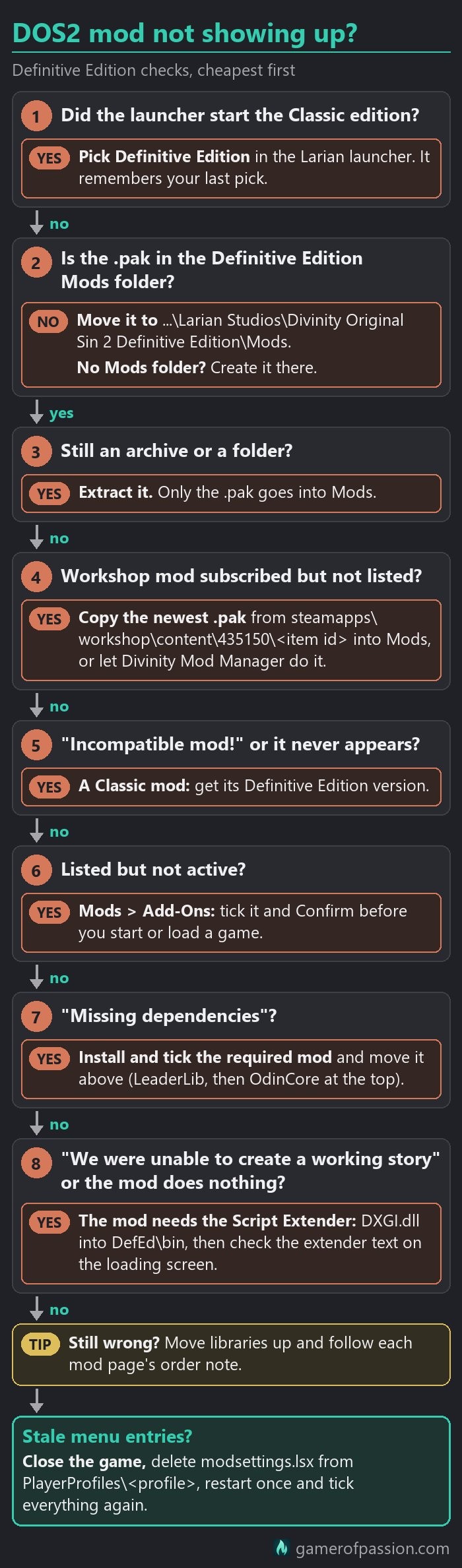
Go through the chart from the top, because the first questions are the quickest to answer. Which edition did the launcher start, and does the .pak sit directly in the Definitive Edition Mods folder, extracted and without a subfolder around it?
One case is easy to miss. A mod that needs the Script Extender and does not get it can bring up “We were unable to create a working story. Your add-on setup might be invalid. The game will continue with the setup from the savegame.” It can also simply do nothing, with no message at all. In both cases, install the extender, or check that DXGI.dll sits in the bin folder inside DefEd.
If every answer on the chart looks right, look at the load order once more. After that, close the game, delete a stale modsettings.lsx and restart the game once.
Achievements
Any Workshop or Nexus add-on you tick turns achievements off for that save. Gift Bags, Larian’s own free add-ons, mostly follow the same rule: switching on any feature in the Gift Bag Features menu counts as playing with add-ons, and achievements are off for that save, the same as with Workshop or Nexus mods.
The two Gift Bags that are applied automatically do not count. Those are the Beauty Salon faces and hairstyles (Gift Bag 1) and The Four Relics of Rivellon (Gift Bag 5), which does not affect your achievements.
The Script Extender changes the picture. It has an achievements setting, EnableAchievements, which is on by default and keeps achievements working with Workshop and Nexus mods. It should cover Gift Bag features as well. Kassent’s Achievements mod is the option without the extender.
| Setup | Achievements | Game text or reason |
|---|---|---|
| No mods, no Gift Bag features | Yes | The normal game |
| Beauty Salon (Gift Bag 1) | Yes | Applied automatically, does not count for achievements |
| The Four Relics of Rivellon (Gift Bag 5) | Yes | Does not affect your achievements |
| A feature switched on in Gift Bag Features | No, for that save | Counts as playing with add-ons |
| Workshop or Nexus add-on ticked | No | “Achievements will be disabled when playing with add-ons.” |
| Script Extender, EnableAchievements on | Yes, with Workshop and Nexus mods | On by default |
| PlayStation with a Gift Bag feature | No trophies | “Trophies will be disabled when playing with add-ons.” |
Gift Bags
Larian released five free Gift Bags between March 2019 and June 2020. Gift Bag 1 brought new faces and hairstyles, Gift Bags 2 to 4 added 16 switchable features based on popular mods, and Gift Bag 5 is The Four Relics of Rivellon quest pack. Gift Bags are official Larian add-ons and exist only in the Definitive Edition.
You switch Gift Bag features on in their own Gift Bag Features menu instead of the Add-Ons list. Of the 16 features, 11 end their description with “Note that this is a persistent modification that cannot be turned off once activated.”, and the game warns that a feature “will be baked into your saved game”, which is why you should treat every one of them as permanent for that save. As such, turn on only what you want for the whole run, ideally before you leave Fort Joy.
The Fort Joy Magic Mirror feature puts a Magic Mirror in the Fort Joy arena, which lets you respec your build before Act 2. It switches off achievements for that save as well, and it cannot be turned off again. I would also leave Improved Organisation off unless you are sure you want it for the rest of the run.
If a Gift Bag feature and a Workshop or Nexus mod do the same job, which is the case for 8 Action Points and an action point mod, Hagglers and Bartering Tweaks, Endless Runner and Toggle Sprint, and Animal Empathy and Free Pet Pal, use only one of them.
Achievements with the Script Extender
For an achievement run, play without add-ons and Gift Bag features, or install the Script Extender and leave EnableAchievements on. The second option needs no extra setting, since EnableAchievements is already on by default.
If you do not want the Script Extender, Kassent’s Achievements mod on Nexus (v1.1.0, take its Definitive Edition file) should do the same job. It replaces bink2w64.dll in DefEd\bin. The “Achievements Disabled” box will still appear, and you can ignore it. Its Achievements.log in Documents\Larian Studios\NativeModLogs tells you whether the patch worked.
Use either Kassent’s mod or the Script Extender for achievements, never both at once.
Saves and co-op
| What you do | What the game does | Risk |
|---|---|---|
| Add a mod to a running save | Mod loads, achievements off for that save | Depends on the mod, its page tells you |
| Untick a mod the save used | “The following addons were enabled on save…” | Crash or leftovers |
| Remove or unsubscribe it | “Loading failed. The following add-ons are missing…” | Save won’t load until the mod is back |
| Remove a story mod (Adventure) | “The savegame’s adventure ([1]) could not be found…” | Save unusable without it |
| Update a mod | An update can deactivate it in the Mods menu | Check it is still ticked before you load |
| Broken mod setup | “We were unable to create a working story…” | The mod is not applied |
| Switch on a Gift Bag feature | “This modification will be baked into your saved game…” | Permanent for the save, achievements off |
| Load the save on another PC | Needs the same mods there | Install the same mods first |
Whether a mod can go onto a running save depends on the mod, and its page will tell you. Some overhauls are fine on an existing save, while others want a new game. After a mod update, check that it is still ticked in the Mods menu before you load, because an update can switch it off there.
Removing a mod
Make sure to back up the save before you add or remove a mod. If you remove a mod later, the game will warn you with one of two boxes, depending on whether the mod is only unticked or gone completely.
If a save used a mod you have since unticked, the game will warn you that “The following addons were enabled on save, but are now disabled in the mod menu” and that loading “could cause the game to crash”. If the mod is gone completely, you will get “Loading failed. The following add-ons are missing”.
Unticking keeps the .pak on your PC, and you can tick the mod again if the save starts to act up. Once the .pak is gone from your Mods folder, the save will not load at all until the mod is back. Unsubscribing alone can leave the game’s copy of the .pak in Mods, so delete that copy as well if you want the mod gone completely.
Co-op with mods
In co-op, everyone needs the same mods in the same versions, and the host’s mod setup should be the one that counts. It is easiest if everyone subscribes to the same Workshop items before the session (a Workshop collection helps with that), because a mismatch will stop the connection with “Connection failed: Server has different mod version”.
If a mod needs the Script Extender, every player needs the extender too. A Steam invite skips the launcher and starts the edition you last picked in it, so make sure that is the Definitive Edition. Divinity Mod Manager can also export your load order and import someone else’s, which saves you from comparing lists by hand.
Other platforms
GOG
On GOG there is no Steam Workshop. Mods come from Nexus as .pak files that you copy into the Mods folder yourself (create the folder if it is missing). The Script Extender goes into C:\Program Files (x86)\GOG Galaxy\Games\Divinity – Original Sin 2\DefEd\bin, and Divinity Mod Manager works once its paths are set. Mods that exist only on the Workshop are out of reach on GOG.
Steam Deck
On a Steam Deck the game runs the Windows version through Proton. Its Documents folder sits inside Proton’s prefix, and the Mods folder ends up here: /home/deck/.steam/steam/steamapps/compatdata/435150/pfx/drive_c/users/steamuser/Documents/Larian Studios/Divinity Original Sin 2 Definitive Edition/Mods.
If a subscribed mod doesn’t appear in the menu, switch to Desktop Mode and copy its .pak there from steamapps/workshop/content/435150/<item id>/.
For the Script Extender, put DXGI.dll into …/common/Divinity Original Sin 2/DefEd/bin/ and add WINEDLLOVERRIDES=”DXGI.dll=n,b” PROTON_NO_ESYNC=1 %command% to the game’s Launch Options. That line belongs on the Deck or Linux only, never on a Windows PC. Divinity Mod Manager does not run on the Deck.
Mac
On a Mac there is no Script Extender and no Divinity Mod Manager. Mods that need the extender cannot run there.
Consoles
There are no Workshop or Nexus mods on PlayStation, Xbox or Switch. Console versions get Larian’s Gift Bags instead (the Switch version launched with every Gift Bag that was out at the time). On PlayStation, switching on a Gift Bag feature turns trophies off, just as it turns achievements off on PC.
Mods worth installing first
The ten mods in the list below are the ones worth installing first as of November 2026. Check each page before you install, because some need the Script Extender. Divinity Unleashed requires it, Toggle Sprint and LeaderLib only use it for extra options, and for the rest the mod page will tell you.
LeaderLib and OdinCore are libraries that other mods need, and Odinblade’s class overhauls need OdinCore. Epip is the odd one out, as you download it from its own site (pinewood.team/epip). If you already switched on Hagglers, Endless Runner or Animal Empathy, skip Bartering Tweaks, Toggle Sprint or Free Pet Pal, since each of them is the mod that Gift Bag feature is based on.
| Mod | What it does | Script Extender | Where to get it |
|---|---|---|---|
| Bartering Tweaks | Party-wide bartering, the original of Hagglers | Check the mod page | Workshop 1499450313 |
| Divinity Unleashed | Total gameplay overhaul of balance and progression | Required | Workshop 1953266629, Nexus DE 244 |
| Epip | UI and quality-of-life mod, larger hotbar, transmog | Check the mod page | pinewood.team/epip |
| Free Pet Pal | Free Pet Pal talent, the original of Animal Empathy | Check the mod page | Workshop 1500380161, Nexus DE 24 |
| Interesting Uniques | More interesting, slightly more powerful uniques | Check the mod page | Nexus DE 6 |
| LeaderLib | Library for other mods, centralised mod menu | Optional | Workshop 1499447796, Nexus DE 10 |
| Odinblade’s class overhauls + OdinCore | Overhaul existing skills, add new ones, need OdinCore | Check the mod page | Nexus DE 64 (OdinCore), Nexus DE 168 (Necromancer) |
| Party Size Evolved | Increases the party size limit to 6, configurable | Check the mod page | Nexus DE 37, Workshop 1503849808 |
| The Cheat Commander | Levelling, equipment, skillbooks and gold at any stage | Check the mod page | Nexus DE 54, use the DE copy |
| Toggle Sprint | Custom running speeds, the original of Endless Runner | Optional | Workshop 1499453694, Nexus DE 11 |
FAQ
Can Divinity: Original Sin 2 be modded?
Yes, on PC. The Definitive Edition takes mods from the Steam Workshop and from Nexus Mods, and it has its own Mods menu to switch them on. There are no Workshop or Nexus mods on consoles.
Is there a mod manager for DOS2?
The game’s own Mods menu handles ticking and load order. Divinity Mod Manager is the free Windows tool for long lists and for sharing load orders, and Vortex lists the Definitive Edition too.
Does Divinity: Original Sin 2 have console mods?
No. PlayStation, Xbox and Switch get Larian’s Gift Bags instead, and on PlayStation, switching on one of their features turns trophies off.
Will Steam ban me for using mods?
No. Mods are a normal, Steam-supported part of Divinity: Original Sin 2, with their own Workshop page and an in-game Mods menu, and the game is not listed as a Valve Anti-Cheat title. The one thing add-ons cost you is achievements.
Why did my mods stop working?
No game update since August 2020 has changed how mods work. Mods that stop working usually do so because the launcher started the Classic edition, a hand-copied Workshop pak stayed on an old version, an updated mod got unticked in the Mods menu, or the Script Extender could not download its update. Keep the game up to date to avoid that last one.
Conclusion
Modding Divinity: Original Sin 2 is fairly simple once you know where the files go. If you play on Steam and just want a handful of mods, the Workshop and the game’s own Mods menu will probably do the job. Bring in the Script Extender and Divinity Mod Manager once your list grows, and back up your save before you change that list mid-run.